Welcome to Patchcord
This is the pre-release edition of this guide, written for the Patchcord beta. Some details may change before 1.0.
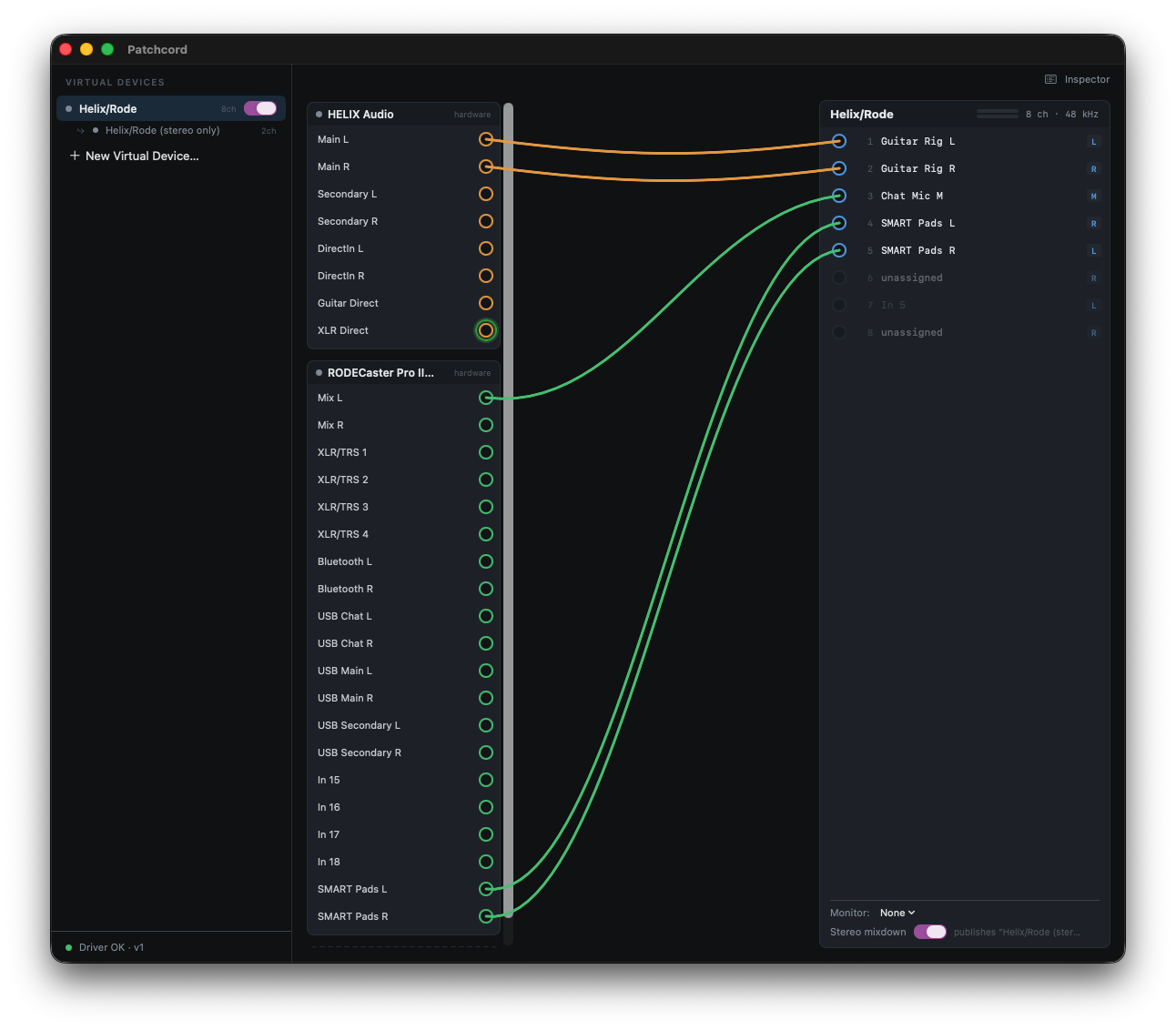
Patchcord gives you a mixing board's worth of routing control over the audio on your Mac, with no physical cable involved. It creates virtual devices: audio interfaces that exist only in software, built from any combination of your apps and hardware. Once wired, a virtual device shows up everywhere on your Mac just like a real interface. Pick it as a microphone in your call app, an output in your DAW, or an input in your streaming software.
The wiring is where Patchcord earns its keep. Instead of a fixed 1:1 pairing, Patchcord's patchbay is a full matrix: any channel from any source can feed any channel of any virtual device, many sources summed into one output, with per-connection trim and a soft limiter so three things landing on the same channel won't clip it. Sources don't need to be present to stay wired. If an app isn't running or a device is unplugged, its cables stay in place, greyed out, and reconnect the moment it's back.
Getting Started
This guide walks through Patchcord's interface and how to use it. Read it start to finish, or jump straight to the section you need. Find it again anytime from Patchcord's Help menu.
What You'll Need
Patchcord requires macOS 14.2 or later. That's the version where Apple added the ability for apps like Patchcord to capture another app's audio directly, which is how per-app sources work. The first time you create a virtual device, Patchcord walks you through a one-time driver installation: a small, one-time system add-on that makes virtual devices possible. See Installing & Uninstalling the Driver.
Device Basics
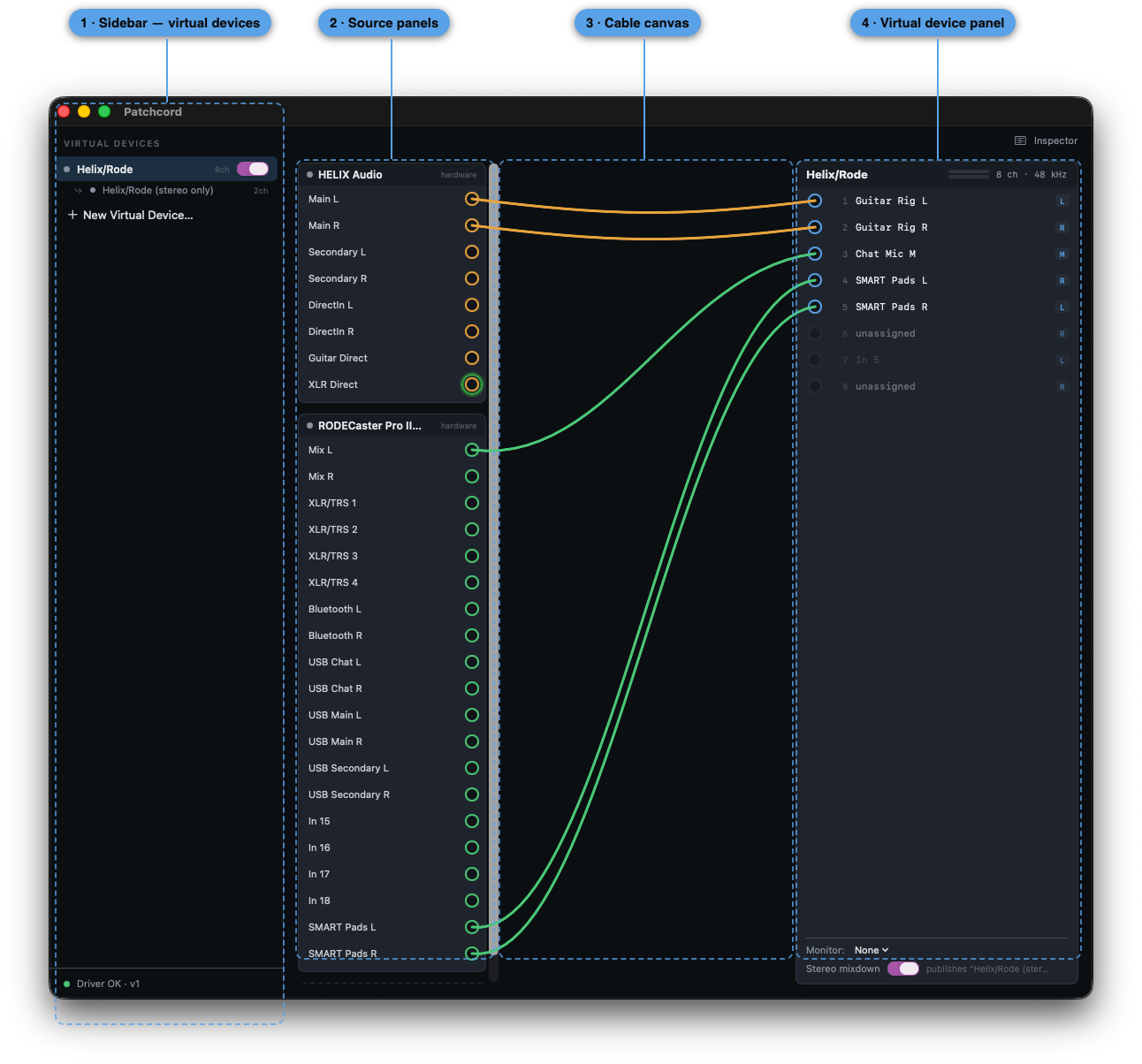
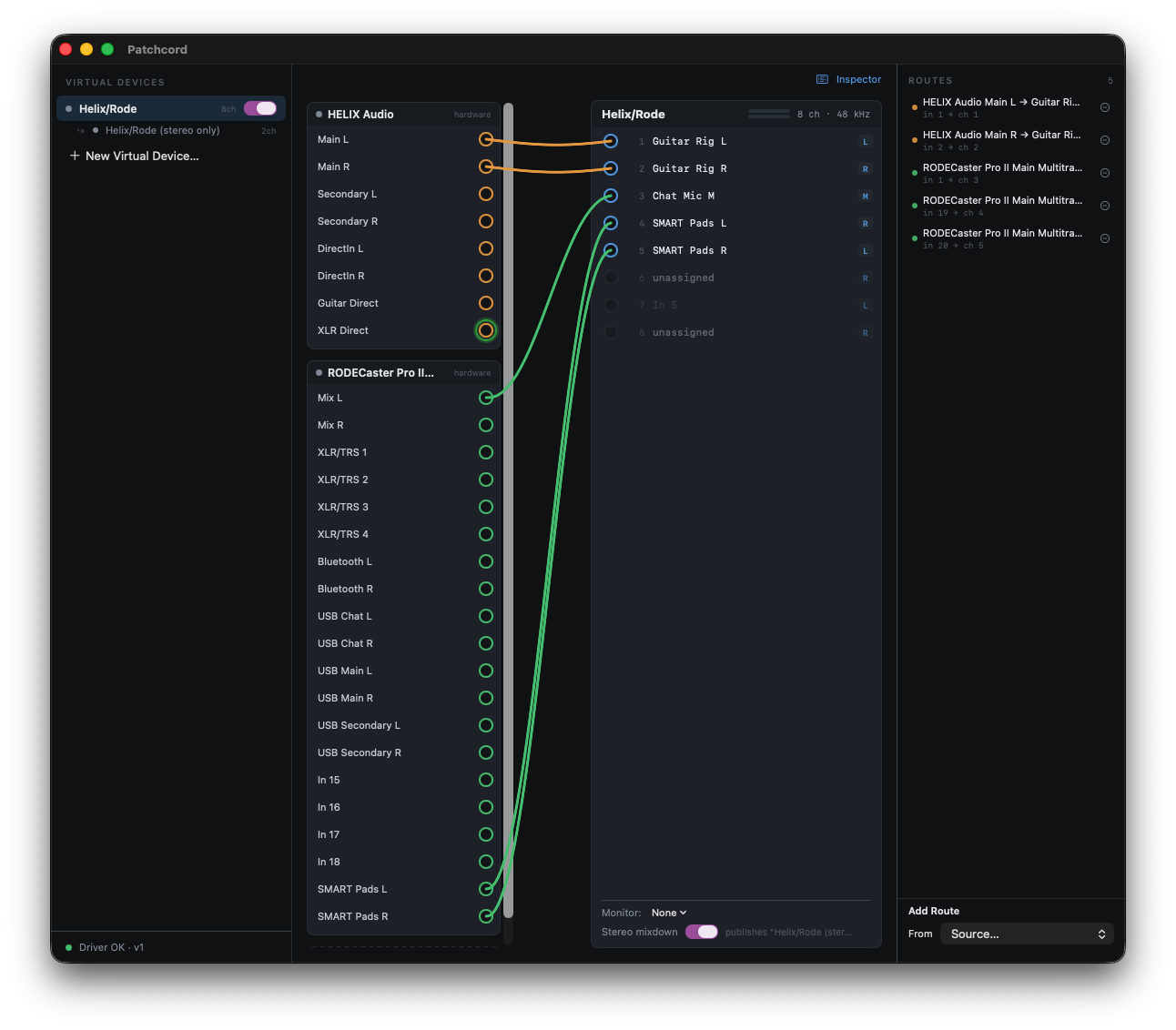
Patchcord's main window is the Patchbay Console, built from four regions:
- Sidebar (left): your virtual devices. Each one has a presence dot, a name, and an enable/disable toggle. Click one to load it onto the canvas. New Virtual Device… at the bottom creates another.
- Source panels (left-center): one panel per hardware device or app, each showing its individual channels as jacks. Panels are grouped and labeled by source, with a presence dot and a HARDWARE tag where relevant.
- Cable canvas (center): where wires live. Drag from a source jack to a virtual device jack to create a route. Drag a cable endpoint to move it. Click a cable and press Delete, or use the route's own control, to remove it.
- Virtual device panel (right): the channels of the currently loaded virtual device, plus its Monitor selector and Stereo Mixdown toggle at the bottom.
Toggle Inspector in the top-right corner to open the Route Inspector alongside the canvas. See Wiring & the Route Inspector.
Patchcord has no "save" or "load" step. Every virtual device and every cable you draw is a live definition: it persists automatically and reflects whatever is actually present right now. If a source isn't running or is unplugged, its panel and cables just dim. They're waiting, not gone. See Sources for how presence works.
Sources
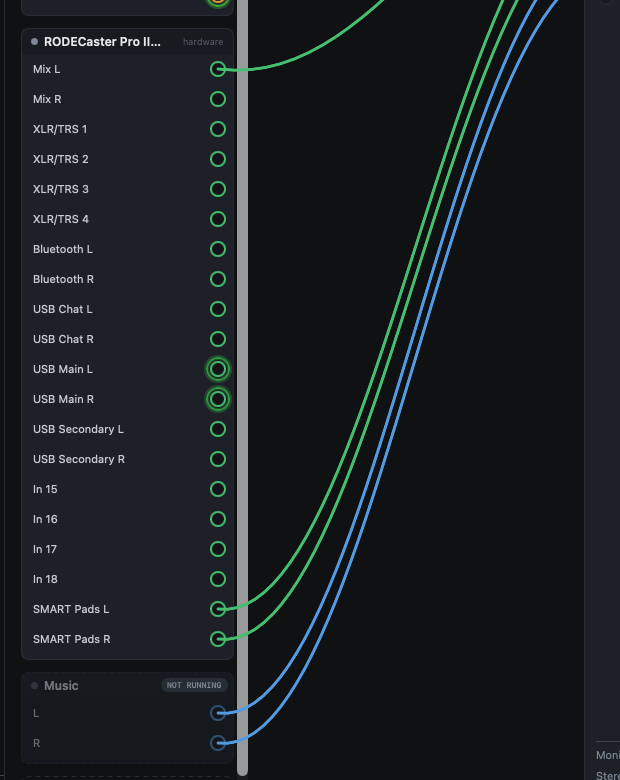
A source is anything Patchcord can pull audio from: a hardware audio interface or an application. Add one with + Add Source beneath the source panel list.
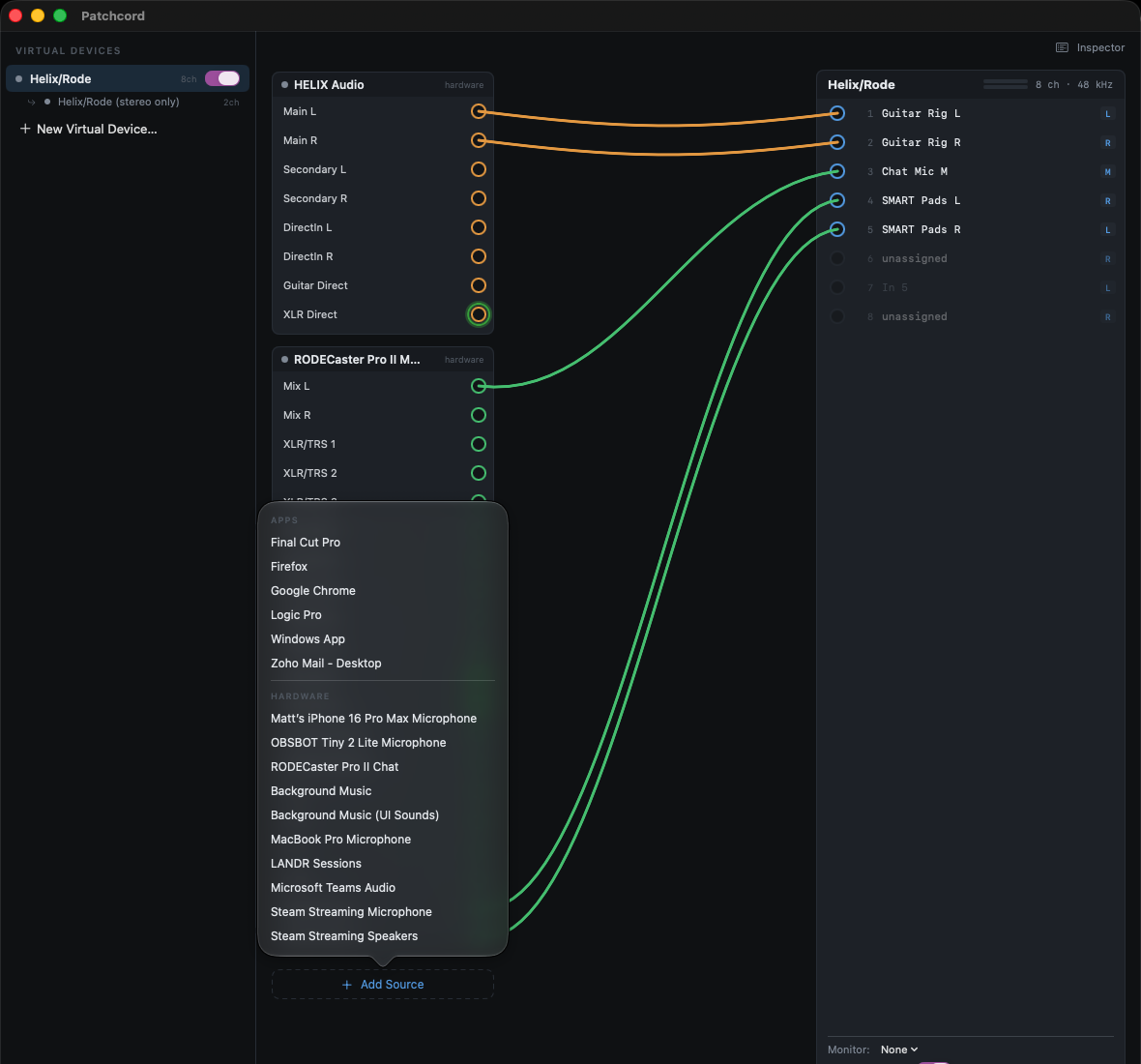
Hardware sources each get their own independent connection to Patchcord. They don't share a channel behind the scenes, so unplugging one device never affects any other source.
App sources capture an app's audio directly from the app itself, background helpers included, with nothing to configure beyond adding the app as a source. One quirk of macOS to know about: an app only becomes visible to the audio system once it has produced sound at least once since launch. If an app you want is missing from the Add Source list, play something in it for a moment, then open the list again.
Presence
Every source shows one of three states, always live:
| State | Look | Meaning |
|---|---|---|
| Flowing | Full opacity, jack ring lit, faint traveling pulse | Actual audible sound is moving through this wire right now |
| Present, silent | Full opacity, ring unlit | Source is available but not currently producing sound |
| Not present | Dimmed, dashed edge | Apps read NOT RUNNING; hardware reads DISCONNECTED |
The traveling pulse is the only moving element in the app, and it's how you can confirm audio is really getting through without opening a meter. Cables to a source that isn't present stay exactly where you left them.
There's no reconnect step. The moment an app launches or a device is plugged back in, its panel and cables fade back to full presence, and audio resumes flowing through every route you'd already wired.
Output Channels / Virtual Devices
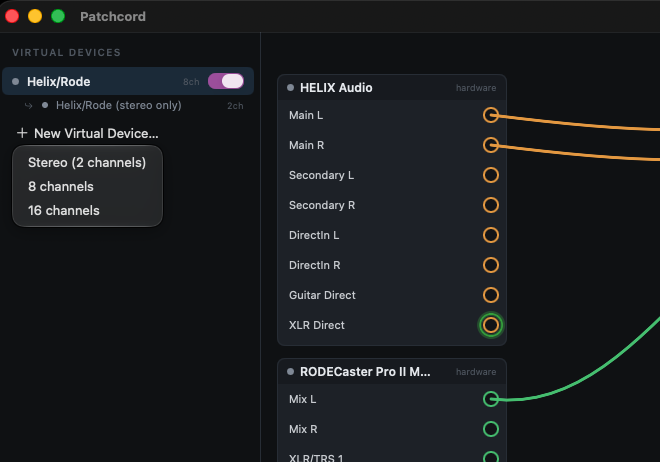
A virtual device is what Patchcord publishes to the rest of macOS. It shows up in Sound settings and in every app's audio menus exactly like a hardware interface would. Create one from New Virtual Device… in the sidebar. Give it a name and choose a channel count, up to 16 channels.
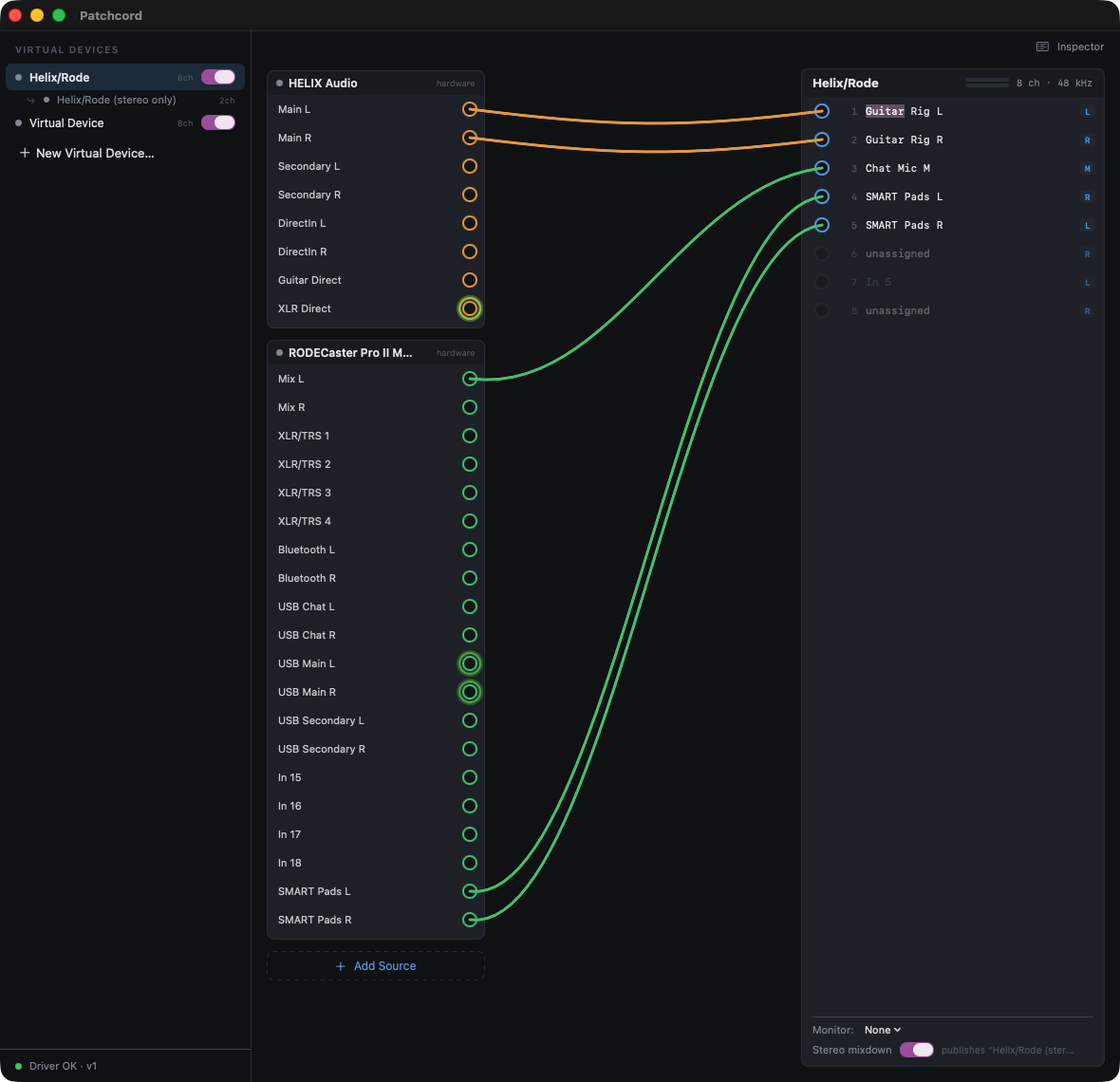
Double-click a channel label in the device panel to rename it. Names are remembered per device, so renaming survives disable/re-enable and app restarts. A channel takes a name once it has at least one cable; unwired channels read "unassigned" until then.
Enable or disable a virtual device from its sidebar toggle. Disabling it stops publishing the device to the system without deleting its wiring. Flip it back on and every cable is exactly where you left it. Duplicate a device from its sidebar row when you want a near-identical variant, for example the same mix with one channel swapped.
Stereo Mixdown
Every virtual device can publish a companion stereo mixdown: a two-channel L/R/Mono device that sums the parent device's channels down for any app expecting a plain stereo input. Toggle Stereo mixdown at the bottom of the device panel. The companion device appears in the sidebar nested under its parent, and in Sound settings as "Device Name (stereo only)".
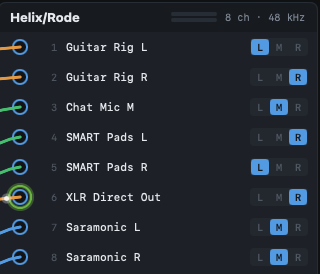
Each channel row in the device panel ends with an L | M | R selector. It sets where that channel lands in the stereo mixdown: L sends it to the left side, R to the right side, and M (mono) to both sides, 3 dB quieter so the sum stays level. Click the letter you want. The highlighted letter is the current role. New devices start with channels alternating L, R, L, R. While Stereo mixdown is off, the selector goes grey, since the role does nothing until you turn the mixdown on.
Deleting a Device
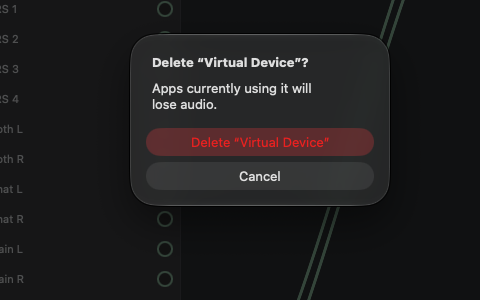
Deleting a virtual device that's in use cuts audio to whatever app is using it. Patchcord warns you first:
"Apps currently using it will lose audio."
Wiring & the Route Inspector
Drawing Cables
Click Inspector (top-right, or ⌘I) to open the Route Inspector alongside the canvas, or wire directly on the canvas by dragging from a source jack to a virtual device jack. A cable takes about 150ms to draw, snaps magnetically to the nearest jack within about 12pt, and settles into a gentle sag at rest. Drag a connected cable's endpoint to re-wire it live, with no dropout.
Patchcord's matrix has no 1:1 restriction. Many sources can feed one virtual channel, summed together, and any source channel can feed any number of virtual channels. When multiple wires land on the same destination, Patchcord sums them and runs the result through a soft limiter, so stacking sources won't clip it.
The Route Inspector
The Inspector lists every route as Source Channel → Destination Channel, in the order you created them. Select a route to see its detail, including a per-wire trim control, and use the dedicated Add Route form (pick a source, then a destination) as an alternative to dragging on the canvas.
Use ⌘Z / ⇧⌘Z to undo and redo wiring changes, including deletions. You can rewire while audio is playing; anything not directly involved in the change keeps playing without a glitch.
First Cable
The first time you wire a virtual device, Patchcord confirms it's live:
"'{name}' is now available as a microphone in every app. Try selecting it in your call app."
From here, using the device just means selecting it wherever that app asks for audio input or output.
Physical Output Bridge
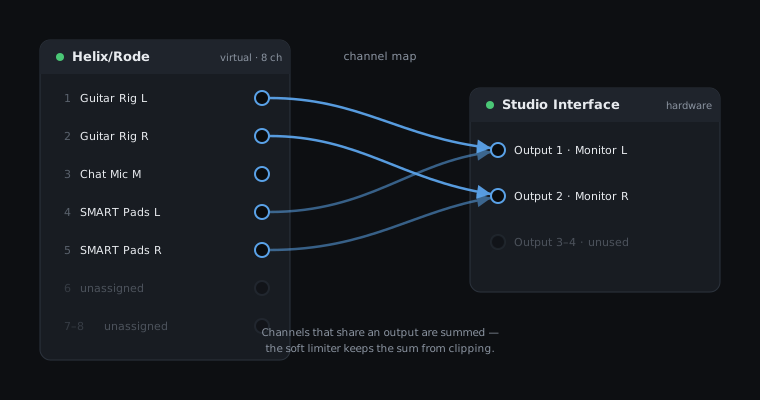
Most routing in Patchcord feeds into a virtual device. The physical output bridge runs the other direction. It takes a virtual device's channels and feeds them, channel-mapped, back out to real hardware, useful for sending a mix built inside Patchcord to studio monitors, a hardware recorder, or any other physical output.
Set this up the same way as any other route: wire from the virtual device's channels to the destination hardware's input jacks. Patchcord automatically keeps this feed in sync with the hardware it's going to, so you don't need to match sample rates by hand.
Monitor
The Monitor selector at the bottom of a virtual device panel shortcuts the common case of listening to that device's mix on a specific output. Pick a hardware destination and Patchcord wires the bridge for you.
Settings
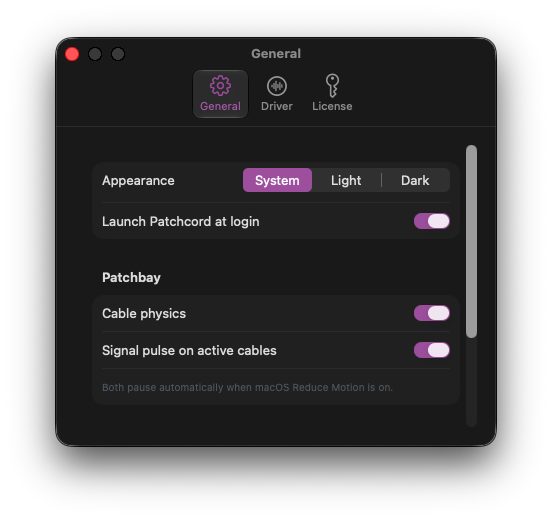
Open Settings with ⌘,. It has three tabs:
General
- Appearance: System, Light, or Dark, switching live with no restart. Dark is Patchcord's studio-hardware look; Light is a brushed-aluminum register, not an inverted version of Dark.
- Launch Patchcord at login
- Cable physics: the sag and spring-follow motion on cables as you drag them.
- Signal pulse on active cables: the traveling brightness pulse that indicates real signal on a wire.
Both Patchbay motion settings default on and disable automatically when macOS Reduce Motion is on.
Driver
See Installing & Uninstalling the Driver.
License
See Licensing & Trial.
Permissions
Patchcord asks macOS for two permissions, each with its own one-time system prompt. Both are consent dialogs owned by macOS itself; Patchcord can't skip or pre-approve either one. Click Allow on both.
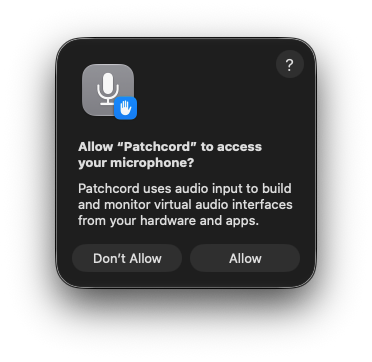
Microphone covers capture from hardware inputs — your interfaces and mics. macOS files all hardware input capture under this one permission, so you'll see it the first time Patchcord pulls from any hardware source, usually during onboarding.
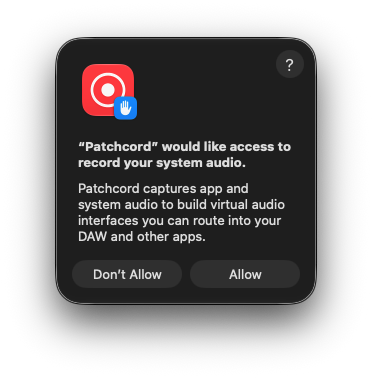
System audio recording covers capture from apps. This prompt appears the first time Patchcord taps an app's audio, not before.
If you deny either prompt by accident, or want to review what's granted, open System Settings → Privacy & Security and look under Microphone and Screen & System Audio Recording (the exact grouping varies a little between macOS versions). Enable Patchcord, then relaunch it.
Licensing & Trial
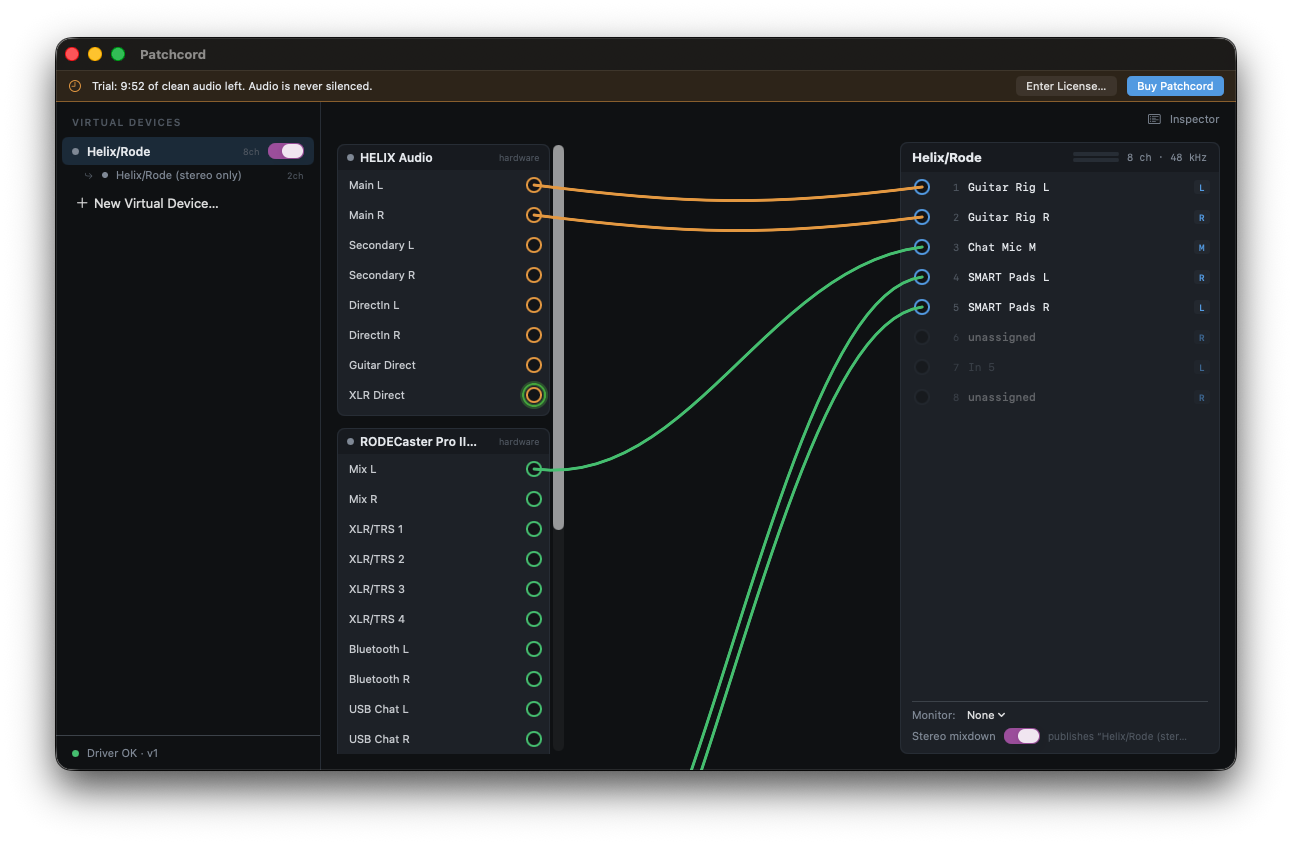
Patchcord runs unlicensed copies as a 10-minute clean trial session. A countdown banner across the top of the window reads:
"Trial: 9:58 of clean audio left. Audio is never silenced."
Audio keeps flowing normally the entire time. Patchcord never mutes or degrades sound during a trial. When the countdown reaches zero, a short static burst marks the end of the session. Reopen the app, or wait, to start a fresh session.
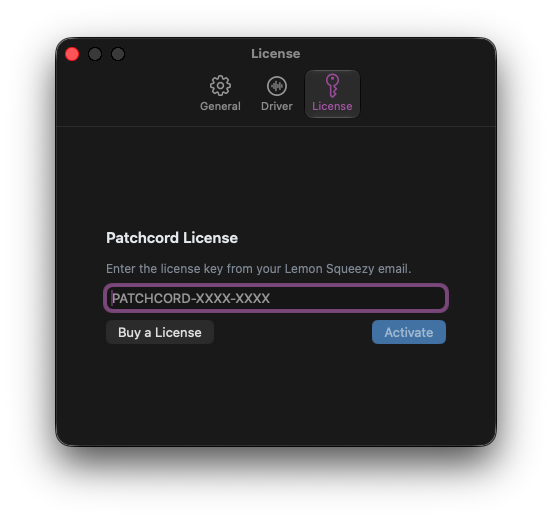
Once purchased, click Enter License… (or Settings → License) and enter the key from your Lemon Squeezy purchase email, in the form PATCHCORD-XXXX-XXXX, then Activate. Your license is stored securely in the macOS Keychain, and the tab confirms it: "Unlocked. Thanks for supporting Patchcord."
Licensed copies check in periodically but work fully offline for up to 30 days between checks. That's a grace period, not a hard cutoff; a brief connectivity gap won't lock you out.
Click Buy a License from the License tab, or Buy Patchcord from the trial banner, to purchase.
Installing & Uninstalling the Driver
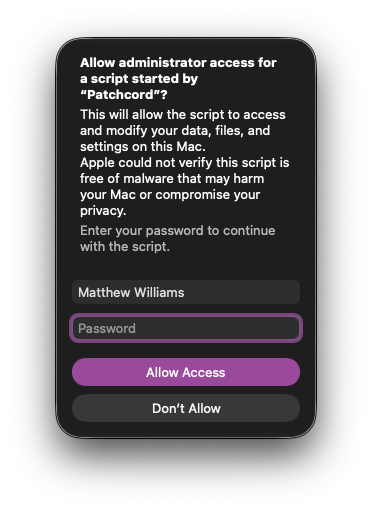
Virtual devices are made possible by the Patchcord audio driver, a small helper component that runs alongside macOS's built-in audio system and lets Patchcord add new virtual devices to it. Patchcord installs it for you the first time you create a virtual device:
"Install the Patchcord audio driver. One admin prompt. Takes about 10 seconds."
Approve the prompt and Patchcord finishes the rest, briefly showing "Starting audio driver…" while the system's audio daemon restarts.
If you cancel the prompt, Patchcord tells you plainly:
"Installation was cancelled. Patchcord needs the driver to create virtual devices."
Trigger it again any time you try to create a device, or from Settings → Driver → Reinstall Driver….
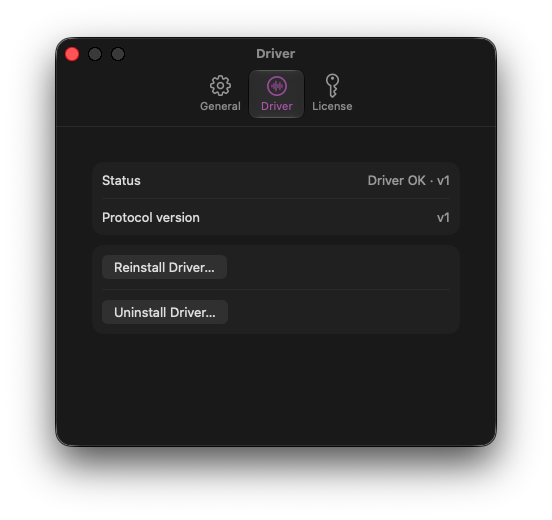
Settings → Driver shows the current state at a glance, status (for example "Driver OK · v1") and protocol version, along with:
- Reinstall Driver…: repairs or updates the driver in place.
- Uninstall Driver…: removes it entirely, returning your Mac to stock audio. Do this if you're done with Patchcord for good, or if support asks you to as a troubleshooting step.
Reinstalling and uninstalling both require an admin password, since the driver lives in a system-protected location, and both briefly interrupt system audio while it restarts.
Troubleshooting
A virtual device isn't showing up in another app. Confirm it's enabled in the sidebar (toggle is on) and that the driver status in Settings → Driver reads "Driver OK." Some apps cache their audio device list; quitting and reopening the app usually picks up a newly created device.
An app I want isn't in the Add Source list. macOS only exposes an app to the audio system after it has produced sound at least once since launch. Play anything in the app for a moment, then open Add Source again. Apps that aren't running at all won't appear either — launch the app first.
No audio is coming through a route I wired. Check the source's presence state. Dimmed with a dashed edge means it's NOT RUNNING or DISCONNECTED, and no signal flows until it returns. If the source shows present-silent (full opacity, ring unlit), confirm it's actually producing sound at the OS level; check its own volume/mute state.
A panel is full and I can't add another route. Patchcord tells you directly: "All 16 channels are assigned." Free a channel by removing an existing route, or create an additional virtual device for the extra source.
Deleting a device or source cut audio somewhere unexpected. That's expected: removing something actively in use disconnects whatever was drawing from it. Patchcord warns before deleting a device that's in use; re-wiring the same source into a different device restores the connection.
The driver needs to be reset. Uninstall it from Settings → Driver → Uninstall Driver…, then create a new virtual device to trigger a fresh install. This is also the right first step if support asks you to "reset the driver."
Still stuck? Check the release notes for recent fixes, or reach out through the support channel listed on the Patchcord website.